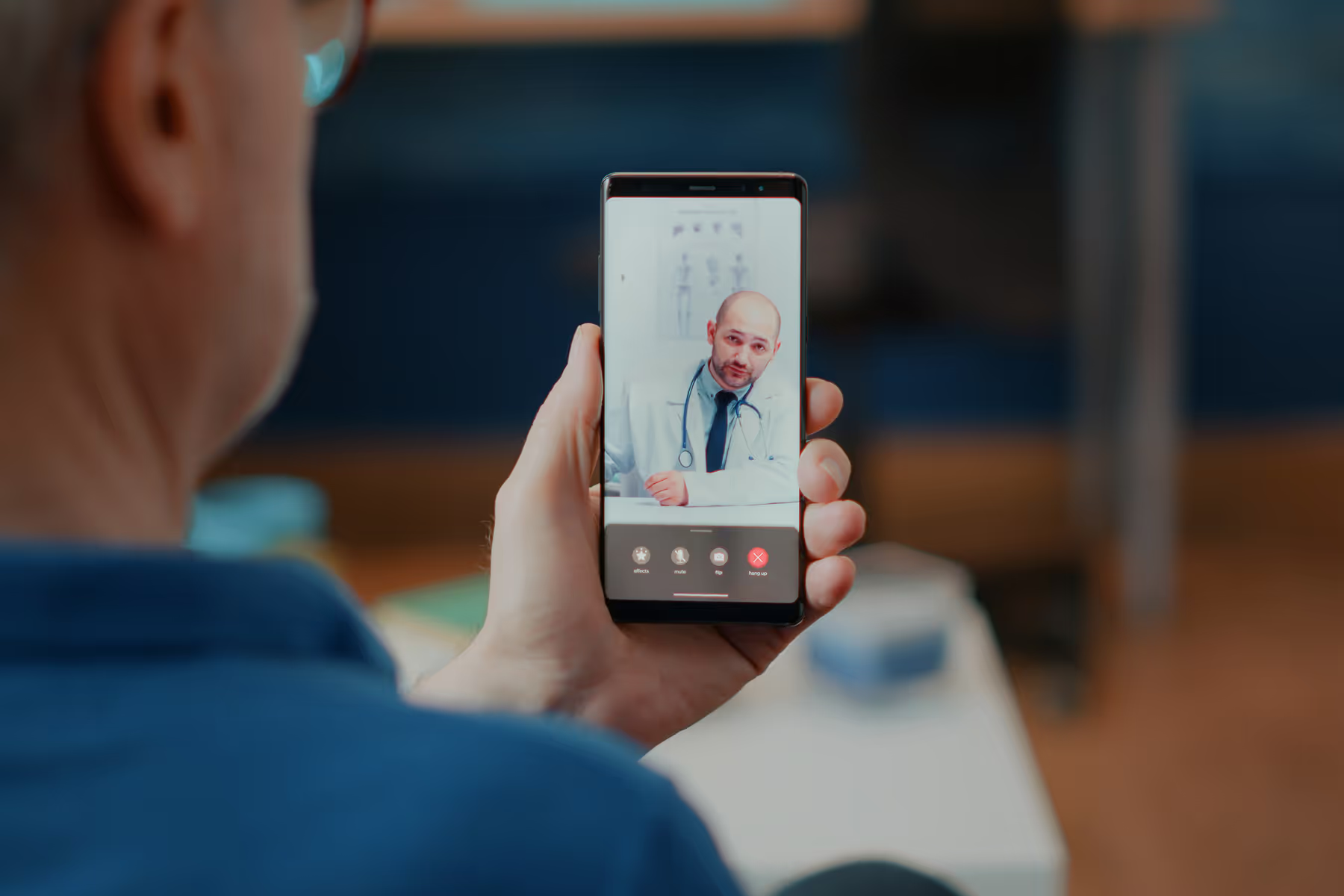
Your remote study visit happens over a video call using a free program called Zoom. You don't need to create an account, and you don't need to pay for anything. This guide walks you through exactly what to do, step by step. Take your time — there's no rush.
Tip: Try joining 5–10 minutes early. That gives you a little time to get set up before your visit begins, and someone from our team will be there to help if you need it.
We're here to help. If anything feels confusing or you get stuck — before or during your visit — please reach out. We're happy to walk you through it. Reach out to us at help@picnicresearch.com or (415) 680-3085.
Before the day of your call
1. Find your Zoom link.
A few days before your visit, we'll send you a link to join the call. You can find it in three places, so use whichever is easiest for you:
The confirmation email we sent you
A text message on your phone
Your PicnicHealth Research Dashboard at app.picnichealth.com/research
The link is a long line of text that starts with "https://" and includes the word "zoom." Clicking it is all you need to do to join — you don't have to type anything in.
2. Decide which device you'll use.
You can join from a smartphone, a tablet, or a computer. Pick whichever has a working camera, a microphone, and a steady internet connection. If you have a choice, a device that's easy to prop up hands-free works best, since the nurse may ask to see condition-relevant movements or parts of your body.
3. Get set up in a good spot.
Choose a quiet, well-lit room where you won't be interrupted. Sit facing a window or a lamp so your face is easy to see.
Joining on a phone or tablet
The first time you use Zoom on a phone or tablet, you'll need the free Zoom app. It only takes a minute to set up.
1. Download the Zoom app ahead of time (do this once).
On an iPhone or iPad, open the App Store, search for Zoom Workplace (it may also appear as "Zoom"), and tap Get to install it.
On an Android phone or tablet, open the Google Play Store, search for Zoom Workplace, and tap Install.
If installing the app is too much, don't worry — you can still join without it. When you tap the link, choose "Join from your browser" instead.
2. When it's time for your visit, tap your Zoom link.
Open the email or text message and tap the link. If you have the app, your phone will offer to open the Zoom app — tap Open or Launch Meeting.
3. Allow Zoom to use your camera and microphone.
A message will pop up asking for permission. Tap Allow or OK each time. This is what lets the nurse see and hear you. (Nothing is shared beyond your visit.)
4. Join the audio.
You may see a button that says "Wi-Fi or Cellular Data" or "Call using Internet Audio." Tap it so you can be heard.
5. Turn on your video.
If your camera isn't already on, tap the screen once and look for a camera icon at the bottom. If it has a line through it, tap it once to turn your video on.
6. Wait to be let in.
You may see a message like "Please wait, the host will let you in soon." That's normal — just stay on the screen and the nurse will join you shortly.
Joining on a computer (laptop or desktop)
You can join on a computer using just your web browser — no download required.
1. When it's time for your visit, click your Zoom link.
Open the confirmation email and click the link. A new browser window will open.
2. Choose how to join.
If a box pops up asking to open Zoom, you can click Open Zoom Meetings if you already have it.
If you don't have Zoom installed, look for a line near the bottom that says "Join from your browser" and click it. This is the easiest option — no download needed.
3. Type your name if asked, then click Join.
4. Allow your camera and microphone.
Your browser will ask for permission to use them. Click Allow. This lets the nurse see and hear you.
5. Connect your audio.
If you see a button that says "Join with Computer Audio," click it.
6. Turn on your video.
At the bottom of the screen, find the camera icon. If it has a line through it, click it once to turn your video on.
7. Wait to be let in.
If you see "Please wait, the host will let you in soon," that's normal. Stay on the page and the nurse will join you shortly.
During your visit
Once you're connected, a research staff member will greet you and guide you through everything. The visit usually takes about 30 minutes. They'll ask study-specific questions.
You can tell them at any time if you're not comfortable with something, and you can ask questions whenever you like.
FAQs
What if I can't find my link?
Check your email's spam or junk folder, and look for a text message. You can also log in to your dashboard at app.picnichealth.com/research to find it.
What if the screen freezes or I get disconnected?
Close Zoom and tap or click your link again to rejoin. If your video or sound isn't working, leaving and rejoining fixes most problems.
What if the interviewer can't hear me?
Make sure you tapped "Join with Computer Audio" or "Call using Internet Audio." Also check that the microphone icon at the bottom doesn't have a line through it — if it does, tap it once to unmute.
What if the interviewer can't see me?
Find the camera icon at the bottom of the screen. If it has a line through it, tap it once to turn your video on.
What if I need to reschedule?
No problem. You can reschedule anytime through your PicnicHealth account, or by contacting us using the phone number or email below.
We know that every person's story is unique and deserves to be heard.
Join our early breast cancer registry to be counted and share your story with research.
List the names of all the doctors, hospitals, and other facilities your loved one visits regularly, along with those they have visited in the past. Try to go back as far as you can, striving for at least the last 5-10 years, but do your best. Even if you can’t remember them all, having a strong baseline can help you quickly identify gaps in records.
Ensure You Have the Appropriate Legal Status
It is important to make sure that you are fully empowered to make decisions on behalf of your loved one with Alzheimer’s. Your relationship status with the patient may not be enough to legally give you access to your loved one's medical information. It is a good idea to talk to an expert about securing special legal status, such as Power of Attorney (POA), a legal document that allows an individual to name someone as their decision maker should they no longer be able to make decisions on their own.
Gather and Organize the Medical Records in One Place
It’s important to have all of your loved one’s medical records together in one spot. This makes it much easier for you and your loved one’s physicians to accurately map the patient’s medical journey and more easily share information between doctors. Fortunately, tools exist to make record management and access simple. A free resource like PicnicHealth helps you collect and organize all of this information. PicnicHealth’s intuitive timeline allows you to pinpoint data across the medical history, eliminating your need for keeping heavy binders filled with paper records or keeping track of multiple software portal logins.
Review the Medical Records to be an Informed Advocate
The better you understand your loved one's medical history, the better you can advocate on their behalf. Access and understanding of this information will help you to ask informed questions with physicians. Through regular communication backed by the data in the medical records, you can help your loved one’s care team develop a more successful care plan.
Learn more about PicnicHealth’s commitment to the Alzheimer’s community and the Alzheimer’s Association
When you’re juggling appointment times and insurance claims, putting a robust support system together might not strike you as the most urgent task. Investing the time to cultivate relationships with people can turn to in times of need will pay dividends. The next time you need a last-minute ride or just someone to listen, you won’t be on your own. There are many condition-specific support groups and support groups for caregivers generally in person or online. In addition to the encouragement and empathy they provide, support groups can be a helpful source of tips, resources, and recommendations for navigating caregiving.
2. Stay organized.
The backbone of effective caregiving is organization. Keep medical information, appointment schedules, and medication lists in order. Use a planner or a digital service like PicnicHealth to stay on top of your responsibilities. This attention to detail can prevent future complications and reduce day-to-day stress.
3. Explore treatments and clinical trials.
We’ve seen incredible breakthroughs in treatment over the past couple of years, powered by patients and their caregivers participating in research. Stay in the loop about the latest in medical advancements and available resources that could benefit your loved one. Whether it’s a new therapy option or a community service that aids independence, being informed can make a world of difference in the quality of care you provide.
4. Make time for self-care.
It may seem self-centered to focus on self-care—but when you feel good, you can be a better caregiver. Whether it’s exercise, a mindfulness practice, a soak in the bath, or just time to rest when you need it, carve out those moments in the day when you can unwind, reset, and stay healthy mentally and physically. Think of it as building up your reserves of kindness, patience, and understanding—which can only benefit your loved one. No one can pour from an empty cup.
Having trouble managing your loved one's medical records?
Easily manage all of your loved one's medical records and contribute to ongoing Alzheimer's research with PicnicHealth.
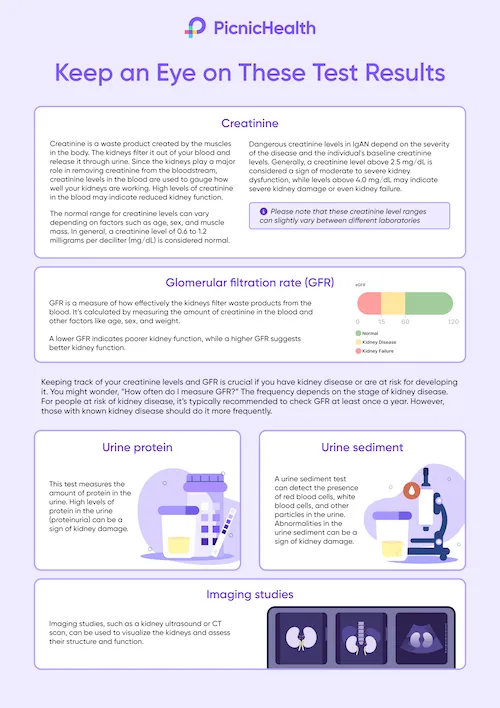
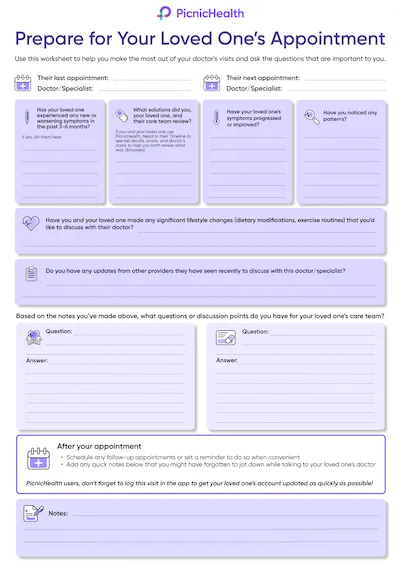
Tip: Download or print the poster at the end of this article to review before your next appointment!
However, it's important to consult with a healthcare provider or registered dietitian to determine the appropriate amount of protein for your individual needs. In general, a diet with moderate protein intake (about 0.8 grams per kilogram of body weight per day) is recommended for people with kidney diseases.
Learn more about contributing to IgAN research with PicnicHealth.
A tablet, phone, or laptop with a working camera, microphone, and stable internet connection.
A quiet, distraction-free area with enough space to walk a few steps if applicable.
A chair that you can use during any movements or tasks you’ll be asked to perform.
The tripod mailed to you via Amazon.
What to Expect
Before your video call:
Book Your Assessment
Visit your to-do list on your PicnicHealth Research Dashboard or click the scheduling link sent to your email. Note: Search for “New task for the ORBIT-CIDP Study" to find the video call scheduling link.
Receive Confirmation
Check your email for a confirmation with your scheduled video call time and instructions.
On the day of your video call:
Click on Video Link
Join your personal video call using the link we sent by email, or text message, or find it on your research dashboard.
Meet your nurse
A Registered Nurse (RN) will guide your virtual assessment, which will last about 30 minutes.
Complete the Physical Activity Assessment (INCAT)
The nurse will guide you through questions and, if needed, physical tasks to help researchers gain a deeper understanding of CIDP.
Complete the Movement Assessment (Optional)
If you participate, a nurse will guide you through three short recorded movement activities to complete as best you can:
Chair Task
While seated with your arms crossed over your chest and hands on oppositeshoulders, you’ll be asked to stand up, remain standing for 20 seconds, and then sit back down.
Arm Movement Task
While seated with your arms resting at your sides, you’ll be asked to raise both arms out to the sides until they meet above your head, then lower them back to your lap.
Finger Dexterity Task
While seated, raise your right hand with fingers extended. Touch your thumb to each fingertip in order, then reverse. Repeat with your left hand. This will then be repeated with your left hand.
Earn Compensation
Receive up to $55 for your participation:
$25 for completing the Physical Activity Assessment (INCAT).
$30 for the Optional Movement Assessment.
Recording: Your research assessment may be recorded to ensure accurate data collection. If you participate in the optional Movement Assessment, it will also be recorded. These recordings may capture your voice and responses, but identifiable information like your face, name, or background will be removed to protect your privacy.
Opt Into the Smart Insole Study Activity
Complete the opt-in survey to confirm your participation.
Receive Your Smart Insoles
Your smart insoles will be shipped to your home via FedEx and should arrive within 1 week.
Create Your Account
You’ll receive an email from Celestra Health with your account details. Follow those steps to set up your account.
If you don’t see an email from Celestra Health in your inbox, please check your spam or junk folder.
Download the App
After creating your account, you’ll be directed to a landing page with links to the App Store or Google Play. Use the link to download the correct version of the app for your device.
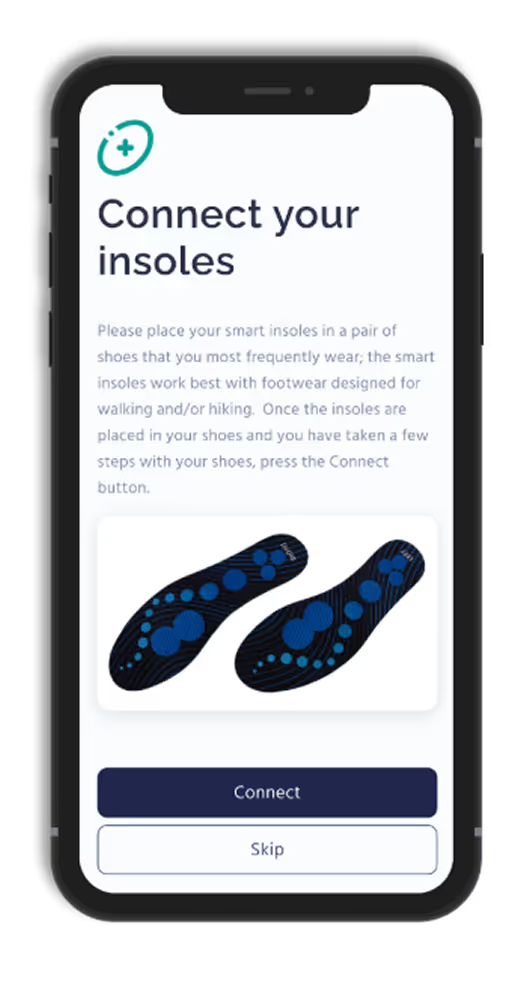
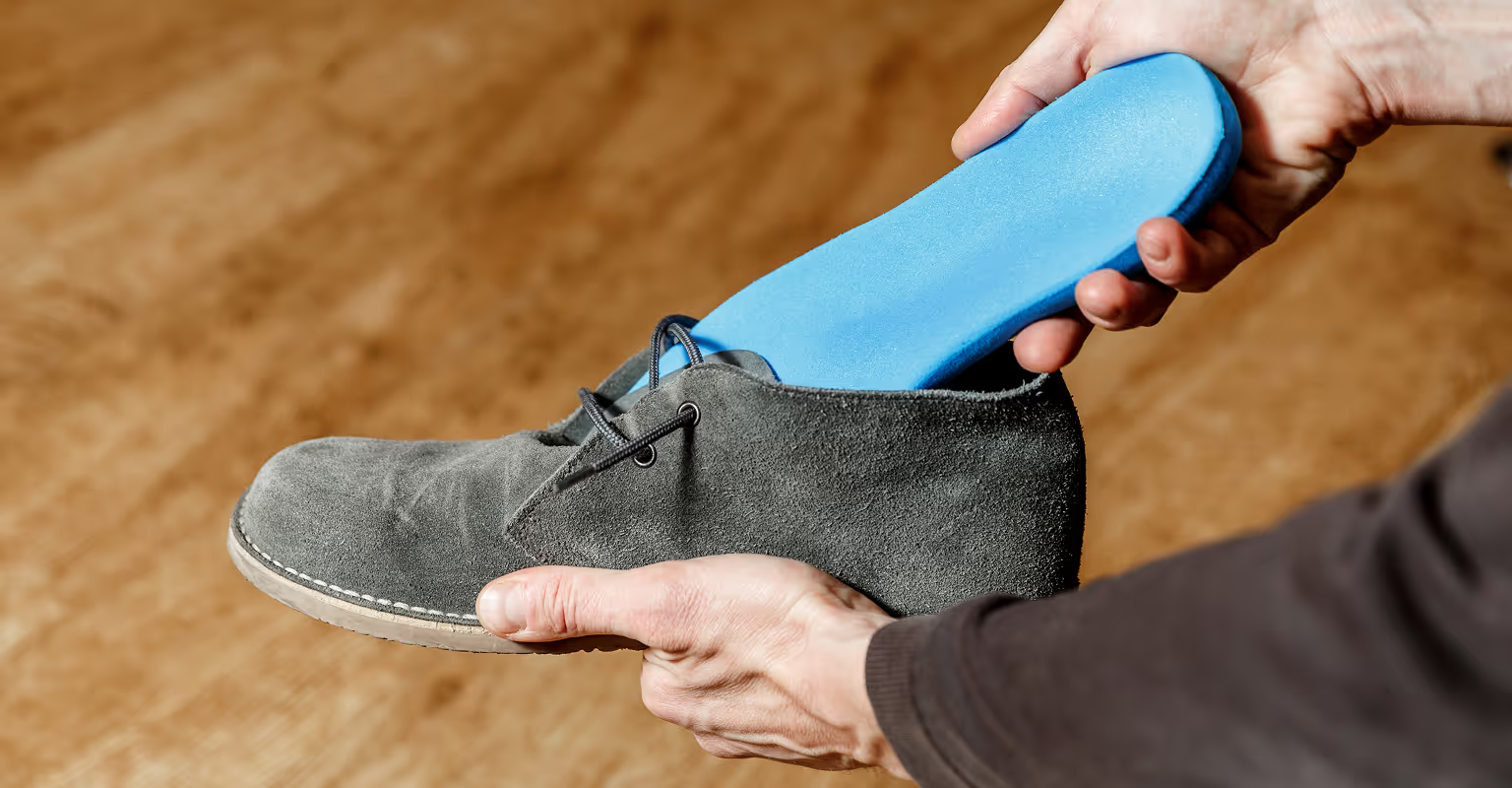
For illustrative purposes only, your insoles may look different
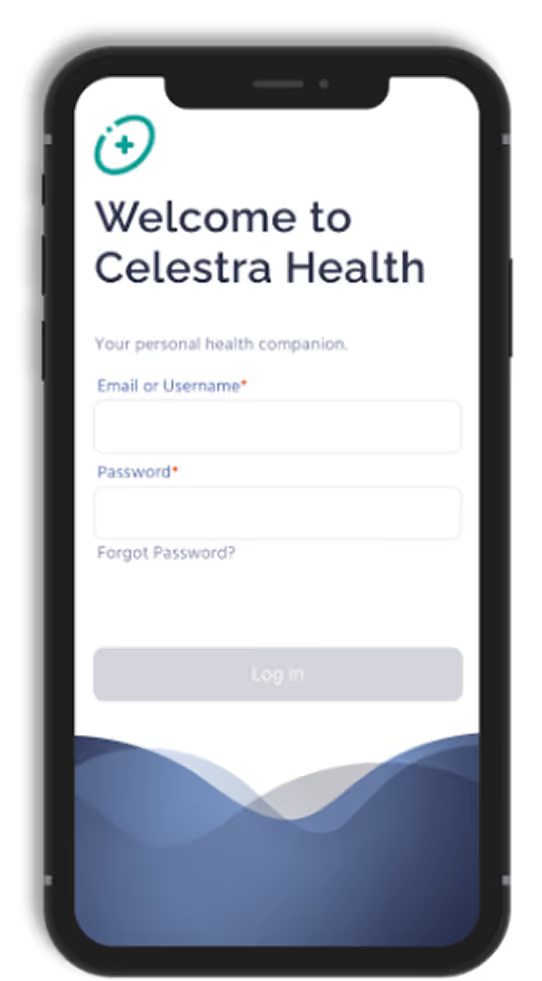
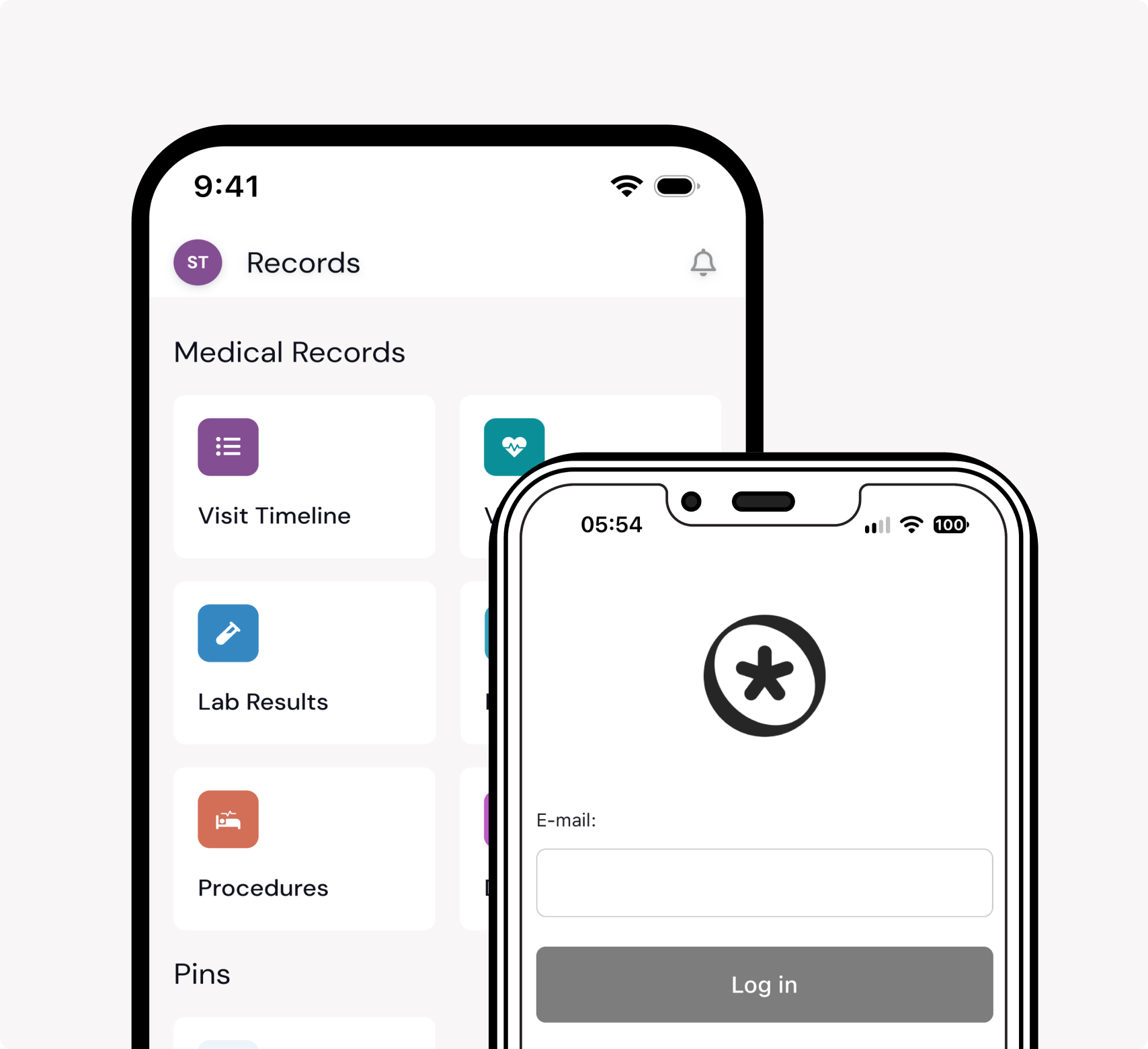
Log In
Open the app and log in using the email address and password you used when creating your account.
Enable Permissions
For iOS users: Enable Motion & Fitness and allow access to Apple Health.
For Android users: Enable Activity Recognition permissions.
Connect Your Insoles
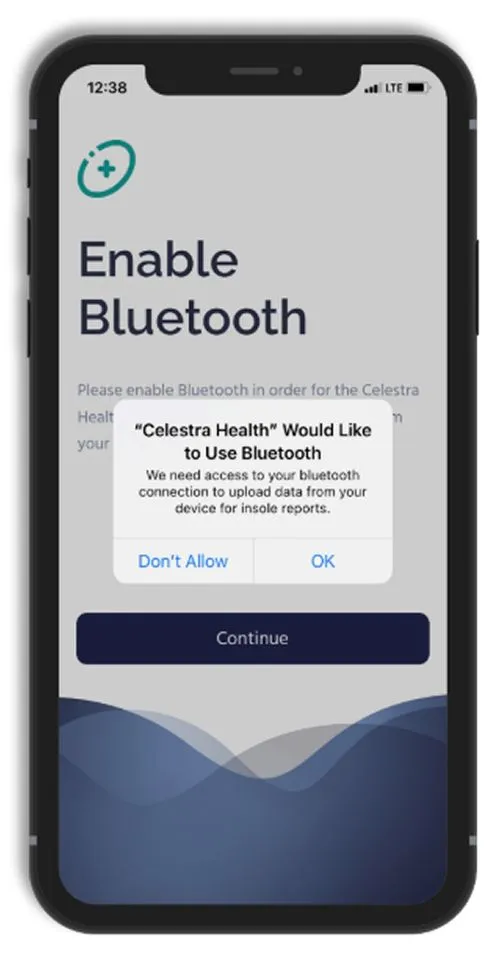
Turn on Bluetooth, and follow the app's instructions to connect your smart insoles.
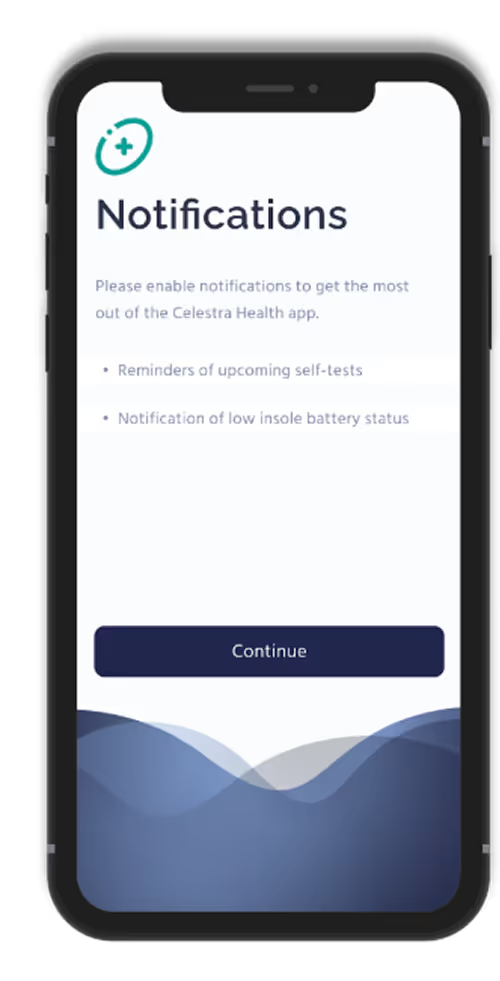
Enable Notifications
Enable push notifications to stay updated on reminders and activity progress.
For illustrative purposes only, your insoles may look different
Start Walking Sessions
When you’re ready to perform a walking session, tap ‘Start’ on the Ad Hoc Walking task card in the app.
Smart insoles are designed to fit comfortably into any pair of closed shoes
Need Help?
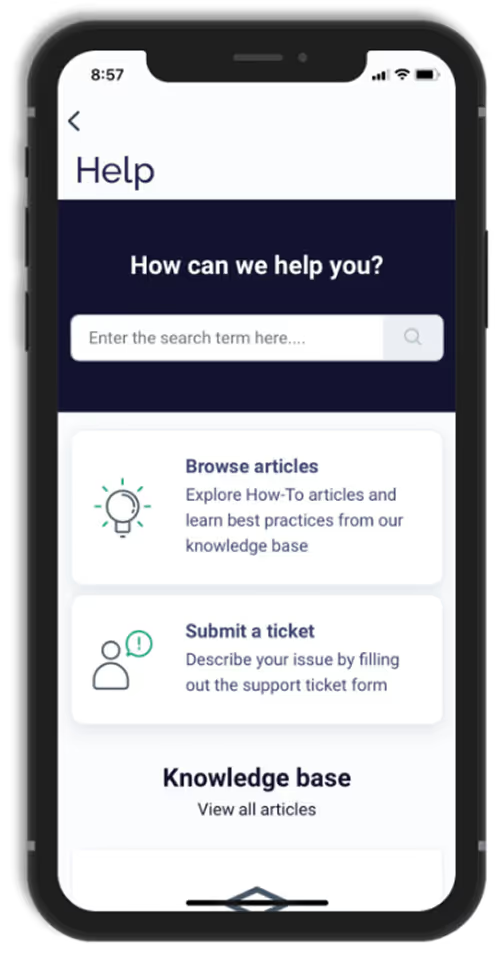
Should you need to contact Celestra Health support for any reason, you can submit a ticket through the Help section of the app by tapping the Submit A Ticket card and filling out the form. A Celestra Health representative will typically respond within one business day.
A fully charged device (smartphone, tablet, or laptop) with a working camera, microphone, and stable internet connection.
A quiet, well-lit space that is free from distractions.
Good lighting so your face is clearly visible; having a small flashlight or your phone’s flashlight nearby can help with skin, scalp, or joint checks.
Flexible device positioning so you can easily adjust or prop up your device hands-free if the research staff asks to view specific areas (such as your face, hands, or scalp).
Space to move in case you are briefly asked to stand or walk a few steps.
Your medication information, including your current steroid(s) and BENLYSTA® (belimumab) — either the medication bottles or a list with doses and schedule.
Time to focus without interruptions so the visit can be completed comfortably.
Before Your Video Call:
Schedule your visit
Use the scheduling link on your PicnicHealth Research Dashboard or the link sent to your email. Tip: Search your inbox for “New task for the BEACON-SLE Study - schedule your remote visit” to find the scheduling email.
Check your confirmation
You’ll receive an email with your appointment time and instructions for joining the video call.
On the Day of Your Video Call:
Join the call
Click the Zoom link sent to you by email or text message, or use the link available on your research dashboard.
Meet with the research staff member
They will ask you structured questions about your health and any lupus symptoms you’ve experienced over the past 30 days.
If needed, they may guide you through a few simple visual checks (such as looking at your skin, hair, joints, or mouth). You can always tell them if you’re not comfortable with anything.
Receive Compensation
You’ll receive up to $60 for completing your visit.
A fully charged device (smartphone, tablet, or laptop) with a working camera, microphone, and stable internet connection.
Prop your device on a table or stable surface so it faces you at eye level if possible.
A quiet space that is free from distractions.
Time to focus without interruptions so the visit can be completed comfortably.
What to Expect
Before your interview:
Schedule your interview
Use the scheduling link on your PicnicHealth Research Dashboard or the link sent to your email.
Tip: Search your inbox for “NAVIGATE-CIDP Interview” to find the scheduling email.
Check your confirmation
You’ll receive an email with your interview time and instructions for joining the call.
On the day of your interview
Join the call
Click the Zoom link sent to you by email or text message, or use the link available on your PicnicHealth Research Dashboard.
Meet with the research staff member
The conversation will cover your CIDP journey and treatment experiences. There are no right or wrong answers — your perspective is what matters.
Ask for your permission to audio-record the session. Recording helps us accurately capture what you share. If you’d rather not be recorded, just say so — we’ll take notes instead, and it won’t change anything about your participation.
Receive compensation
You’ll receive $150 for completing your visit. Available to claim in the Rewards section of your PicnicHealth account after your interview.
A few things to know: Take your time. There’s no rush. Pauses and silence are completely fine.Skip anything you’d rather not answer. Just say so, and your interviewer will move on.Ask for clarification if a question isn’t clear. Your interviewer is happy to rephrase.Take a break if you need one. Just let your interviewer know.
Stop at any time if you want to end early. There’s no expectation either way.
Need Help?
If you have questions before, during, or after your interview, we’re here.
Before getting started, please update your PicnicHealth app to the latest version through the App Store or Google Play. This will help ensure you can access the latest study activities and features.
This guide covers everything you need to prepare for your NAVIGATE-CIDP Study patient interview — from what to expect to how to join. The interview is a relaxed, one-on-one virtual conversation about your experience with Chronic Inflammatory Demyelinating Polyradiculoneuropathy (CIDP). It takes about 60-90 minutes, with time for breaks as needed, and you can do it by video or phone — whichever works best for you.
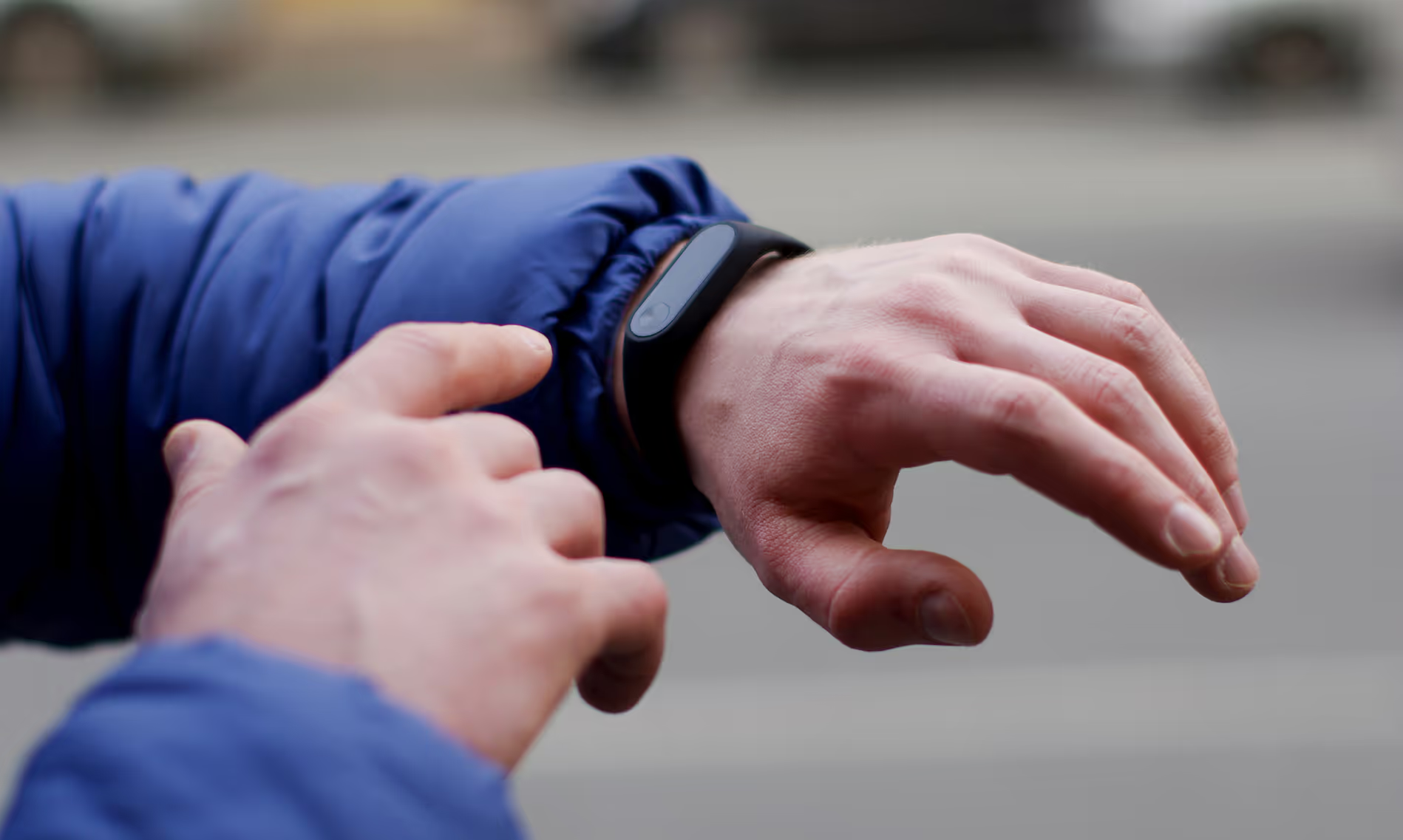
A step-by-step walkthrough for receiving your Fitbit, setting it up, pairing it in the Fitbit app, and securely linking it to your PicnicHealth account.
Participating in a virtual research assessment allows you to contribute to important research from the comfort of your home. Your time and effort help advance understanding of CIDP while providing you with valuable insights into your health.